

 Spread Book
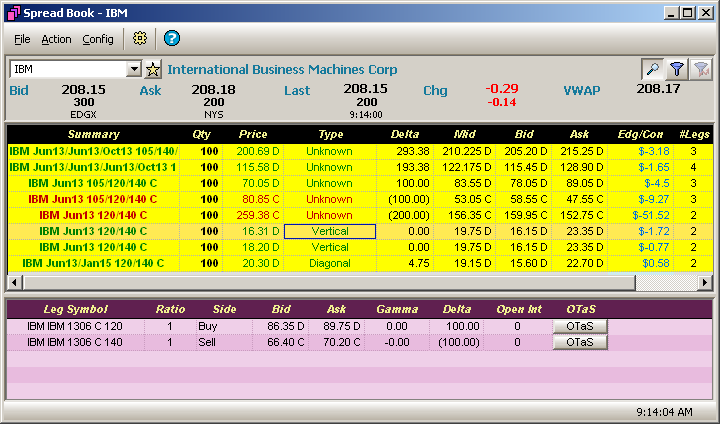
Spread Book displays Spread Orders from various exchanges. Viewable information includes the Type of Spread, on which exchange the order is found, its Price, Quantity, and Delta, and more.
Spread Book is both a standalone applet and an optional pane in Spread Builder.
From the WTP toolbar, select Analyze-->Spread Book.
Alternate Method:
From the WTP menu select Spread Book.
The Spread Book window is divided into three sections:
SECURITY DETAIL
(top)—Bid,
Ask, Last, Chg, and VWAP values.
BOOK GRID (middle)—Summary section for multiple securities.
The available columns are configurable.
DETAIL GRID (bottom)—Detailed display of option/underlier data for each leg of a selected Spread Order.
Show or Hide the Security Detail Window
Press the Security Detail button  to show/hide
the Security Detail window.
to show/hide
the Security Detail window.
Alternate Methods:
 .
Check the Show Security
Detail box to display the Security Detail.
.
Check the Show Security
Detail box to display the Security Detail.
Create Multi-leg Spread Orders
Double-click on the row containing the desired Spread Order. This will launch a Spread Builder ticket with the legs populated.
The default operation for a double click is a "Take." To "Join" the market, use the Join button.
Learn more about the ticket and creating orders in Spread Builder here.
Data displayed in the Book grid can be filtered based on defined criteria.
Click
on the filter button  to open the filter configuration window.
From this window define one or more expressions with a condition and
target value. Once set, the filters are enabled by checking the Filters check box on Spread Book.
to open the filter configuration window.
From this window define one or more expressions with a condition and
target value. Once set, the filters are enabled by checking the Filters check box on Spread Book.
To
the right of the filter button is the Filter Spread Book
on Built Spread button .
Select this filter to view unfilled
spreads that you created.
.
Select this filter to view unfilled
spreads that you created.
Learn about setting expressions here.
Different spread types are available in Spread Book and are listed in the Type column of the Book Grid:
Spread Type |
Definition |
Box |
A dual option position involving a bull and bear spread with identical expiry dates. This investment strategy provides for minimal risk. Additionally, it can lead to an arbitrage position as an investor attempts to lock in a small return at expiry. |
Butterfly |
A strategy combining a bull and bear spread. It uses three strike prices. The lower two strike prices are used in the bull spread, and the higher strike price in the bear spread. Both puts and calls can be used. |
Buy-Write |
A strategy that consists of writing call options on an underlying position to generate income from option premiums. Because the options position is covered by the underlying position, the downside risk of writing the option is minimized. |
Calendar |
An options or futures spread established by simultaneously entering a long and short position on the same underlying asset but with different delivery months. Sometimes referred to as an interdelivery, intramarket, time or horizontal spread. |
Condor |
Similar to a butterfly spread, a condor is an options strategy that also has a bear and a bull spread, except that the strike prices on the short call and short put are different. |
Diagonal |
A strategy established by simultaneously entering into a long and short position in two options of the same type (two call options or two put options) but with different strike prices and expiration dates. |
Iron Butterfly |
A strategy that is created with four options at three consecutively higher strike prices. The two options located at the middle strike create a long or short straddle (one call and one put with the same strike price and expiration date) depending on whether the options are being bought or sold. The "wings" (options at the higher and lower strike prices) of the strategy are created by the purchase or sale of a strangle (one call and one put at different strike prices but the same expiration date). This strategy differs from the butterfly spread because it uses both calls and puts, as opposed to all calls or all puts. |
Iron Condor |
An advanced options strategy that involves buying and holding four different options with different strike prices. The iron condor is constructed by holding a long and short position in two different strangle strategies. A strangle is created by buying or selling a call option and a put option with different strike prices, but the same expiration date. The potential for profit or loss is limited in this strategy because an offsetting strangle is positioned around the two options that make up the strangle at the middle strike prices. |
Married Put |
A strategy whereby an investor, holding a long position in stock, purchases a put on the same stock to protect against a depreciation in the stock's price. |
Risk Reversal |
A hedge strategy that consists of selling a call and buying a put option. This strategy protects against unfavorable, downward price movements but limits the profits that can be made from favorable upward price movements. |
Straddle |
A strategy with which the investor holds a position in both a call and put with the same strike price and expiration date. |
Strangle |
An options strategy where the investor holds a position in both a call and put with different strike prices but with the same maturity and underlying asset. This option strategy is profitable only if there are large movements in the price of the underlying asset. |
Swap |
The difference between the negotiated and fixed rate of a swap. The spread is determined by characteristics of market supply and creditor worthiness. |
Synthetic Put |
An investment strategy of short selling a security and entering a long position on its call. |
Vertical |
A trading strategy with which a trader makes a simultaneous purchase and sale of two options of the same type that have the same expiration dates but different strike prices. |
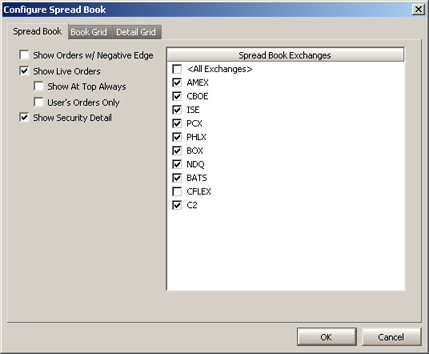
Press the Configuration button
to open the Spread Book configuration window.
Alternate Methods:
From
the Config menu select
Configuration.
Right-click anywhere on the Spread Book window and select Configuration.
Spread Book Options
Show Orders
w/Negative Edge—By default,
orders with negative edge (i.e., the difference between Price
and Theoretical) will not be
displayed. Check this box to view orders with negative edge.
Show Live
Orders—If selected, unfilled
(i.e., live) orders are displayed in the Book grid.
Show At Top
Always—Working in conjunction
with Show Live Orders, if checked, the live orders are listed
at the top of the Book grid.
User's Orders
Only—If checked, all orders
not generated by the current
user will be hidden.
Show Security
Detail—If selected, the Security
Detail portion of the Spread Book window will display.
Spread Book Exchanges—Check the appropriate box(es) corresponding to the exchanges whose book data is to be viewed. For all exchanges, check <All Exchanges>.
Book Grid and Detail Grid Options
Column settings and styles are defined in Book Grid and Detail Grid options.
Learn about Columns and Formatting here.
A Spread Book template is a file with a .spt extension. A configured Spread Book page can be saved as a template or default template.
Learn about templates here.
The data in Spread Book can be exported to a file, clipboard, or Microsoft Excel spreadsheet program.
Learn about exporting grid data here.

© 2015 Wolverine Execution Services, LLC